
You can configure search parameters that contain drop-down lists individually. Examples of such search parameters are trading venues, countries, currencies, issuers or sectors.
To configure listings, follow these steps:
-
Open a detailed search, for example, the equities search by using the command of the same name in the menu of the "Equities" tab.
-
If necessary, expand the corresponding area (for example, "Basic info") so that the individual parameters can be seen. For more information on defining areas, see Configuring the areas of the search parameters.
-

Click the "Configuration" icon to the right of the parameter you want to edit.
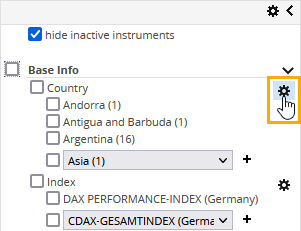
In the "Search parameters configuration" dialogue window that opens, you can permanently show or hide the individual parameter fields in the search screens, change their order or restore the default settings.
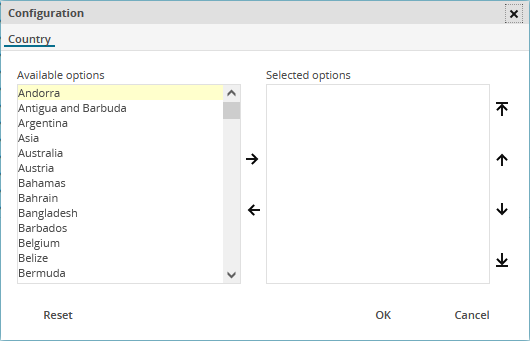
The elements on the right side ("Selected options") are currently displayed in the search screen. On the left side, you see the currently hidden elements.
You have the following options:Icon/function
Description

Click this icon to move a selected parameter from the left side to the right and thus display it in the search screen.
For the functions described in this table, multiple selection is also possible to quickly move several elements.

Click this icon to move a selected element from the right side to the left and thus hide it.

Click this icon to move a selected (displayed) element on the right side to the top of this area.

Click this icon to move a selected (displayed) parameter on the right side one position up.

Click this icon to move a selected (displayed) element on the right side to the very bottom of this area.

Click this icon to move a selected (displayed) on the right side one position down.
"Reset" button
Click this button to restore this default setting.
"OK" button
Click this button to apply the selected settings and close the "Configuration" dialogue window.
"Cancel" button
Click this button to apply the selected settings and close the "Configuration" dialogue window.
-
After the configuration, close the "Configuration" dialogue window with "OK".
This updates the search screen.
You can also configure search filters by using the drop-down list:
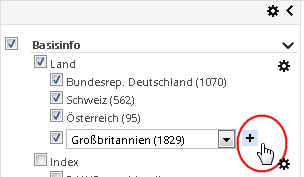
Select an element in a drop-down list and then choose the icon next to it to display this parameter above the drop-down list. You can also select several entries one after the other.