

The following functions are available on the toolbar:
|
Function |
Icon |
Description |
|---|---|---|
|
Watchlist |
|
In the top left, you see the name of the currently selected watchlist. If you have created several watchlists, you can switch between the individual watchlists by using the drop-down list. |
|
Create new watchlist |
|
Creates a new watchlist. For more information, see Create watchlist. |
|
Rename current watchlist |
|
Allows you to rename the currently open watchlist. In the "Rename document type" dialogue window that appears, enter the name for the new document type and confirm with "OK". |
|
Delete current watchlist |
|
Deletes the currently open watchlist. Confirm the security prompt deletes the watchlist. |
|
Add position to watchlist |
|
Allows you to add a security to the watchlist by using the security search. For more information, see Add securities to watchlist. |
|
View |
|
You can switch between the default table view and the view of positions as individual charts. Select the required entry in the "View" drop-down list.
|
|
Configure columns |
|
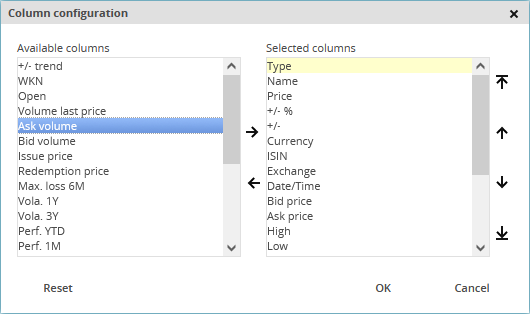
Allows you to select and rearrange the columns of the watchlist. In the "Column configuration" dialogue window that appears, the "Available columns" section shows the columns that you can select, the "Selected columns" section. To select the columns of your watchlist, use the arrow icons on the right side of the dialogue window. Specify the column order by using the arrow icons on the right of the dialogue window. To restore the default state, click the "Restore" button. To cancel the configuration, click the "Cancel" button. To confirm the configuration, click "OK". |
|
Multiline comments |
|
Shows long texts in the "Comments" column over several lines. For more information about the comments, see Enter comments on securities in watchlists. |
|
Export table |
|
Exports the current watchlist. Click the icon to open the drop-down list and select the corresponding file format.
|




-
Show security profile
-
Show chart centre
-
Add to favourites
-
Add to watchlist
-
Add to portfolio
By clicking the underlined column headers, you can sort the watchlist by this column in ascending or descending order. You can recognise the currently valid column sort order by the symbol next to the column header.