

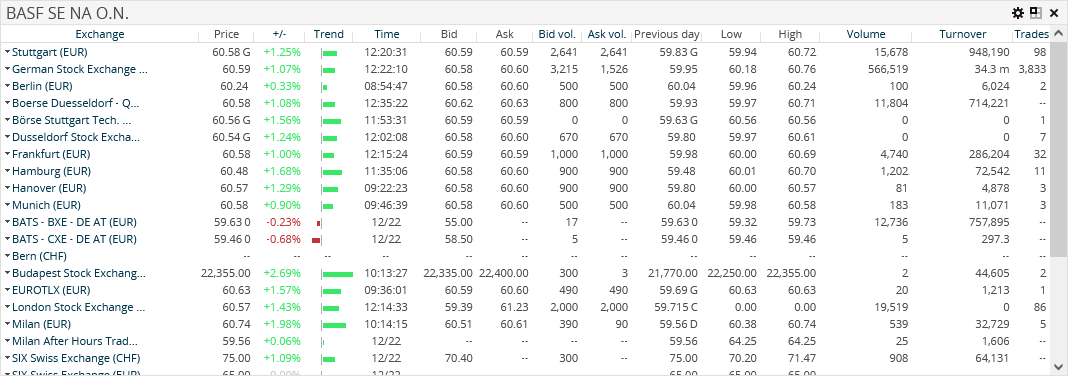
The "Arbitrage" market data widget shows all available trading venues for the selected security, allowing for a quick comparison. By default, the widget spans three columns so as to show all the important data of the arbitrage table.

Confirm your configuration by clicking the "Apply" button.
The "Arbitrage" market data widget shows all the important quote information of the selected security for the various trading venues.
-
Exchange
-
Price
-
+/-
-
Trend (graphic)
-
Time
-
Bid
-
Ask
-
Bid volume
-
Ask volume
-
previous day
-
Low
-
High
-
Volume
-
Turnover
-
Trades
-

-
By clicking the underlined column headers, you can sort the arbitrage list by this column in ascending or descending order. You can recognise the currently valid column sort order by the symbol next to the column header.
-
By clicking a venue in the "Trading venue" column, you go directly from the work area to the corresponding security profile with this quotation.